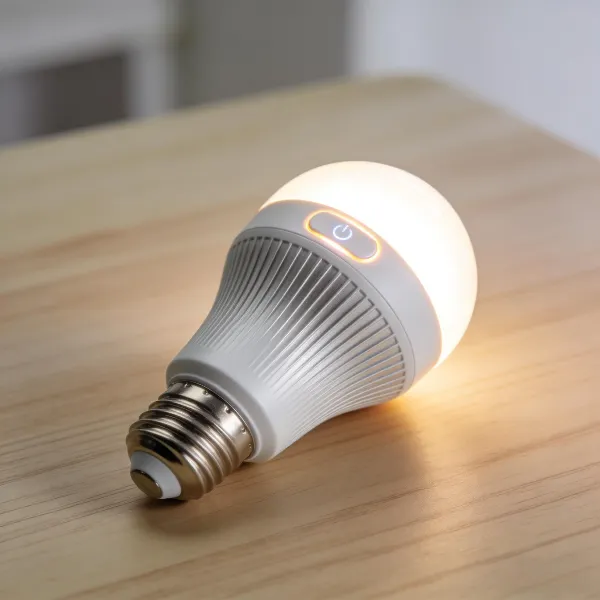
If your Kasa smart bulb isn’t working properly, a reset can often fix the issue and help you reconnect it to your network. Whether you're resetting through the light switch or using the Kasa app, it’s quick and straightforward. We’ll walk you through the process, plus share some troubleshooting tips to ensure your bulb gets back to working smoothly.
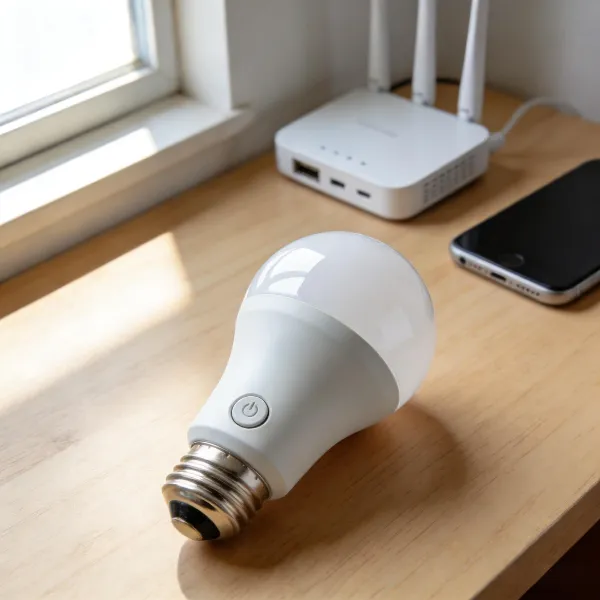
Top Methods for Resetting Your Kasa Smart Bulb
There are two easy ways to reset your Kasa smart bulb: through the light switch or using the Kasa app. Here’s how you can do it!
Factory Reset Using the Light Switch
Sometimes the quickest way to reset your Kasa smart bulb is through the light switch, especially if you don’t have the app handy. Here's how to do it:
- Turn the light off and on: Start by turning your bulb off for a few seconds and then back on.
- Repeat the process: Turn the bulb off and on again, a total of 5 times. On the fifth time, leave the bulb on.
- Wait for the reset: After the fifth cycle, the bulb should blink rapidly, signaling that it has been reset.
- Re-pair the bulb: Now you can reconnect the bulb to your Kasa app by following the setup instructions.
This method is quick, especially if you don’t have access to the app.
Alternative Factory Reset Using the Kasa App
If you prefer using your smartphone, you can reset the bulb through the Kasa app. Here’s how:
- Open the Kasa app: Launch the app on your phone.
- Select the bulb: In the app, find your Kasa bulb in the device list and tap on it.
- Go to settings: Tap on the gear icon to open settings for the bulb.
- Reset the bulb: Scroll down and tap the “Factory Reset” button.
- Confirm the reset: The app will ask you to confirm the action. Once confirmed, your bulb will reset.
- Reconfigure the bulb: Follow the on-screen instructions to reconnect the bulb to your Wi-Fi network.
This method gives you more control and is a great option when troubleshooting or adjusting your settings.
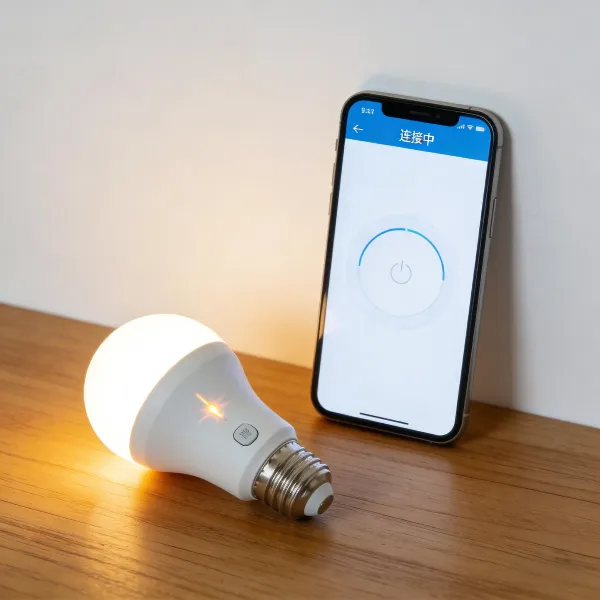
Troubleshooting Common Issues When Resetting Your Kasa Smart Bulb
Even after resetting your Kasa smart bulb, you might encounter some issues. Here are some common problems and how to fix them.
Fixing Connectivity Problems
If your Kasa bulb won’t connect to Wi-Fi after resetting, try these steps:
- Check your Wi-Fi settings: Make sure your Wi-Fi is set to 2.4GHz, as Kasa bulbs don’t support 5GHz.
- Signal strength: Ensure your router is close enough to the bulb to provide a strong signal.
- Restart the router: Sometimes, simply rebooting your router can solve the issue.
Resolving App Connection Issues
If the bulb still won’t connect via the Kasa app, here are a few things to try:
- Enable Bluetooth: The app uses Bluetooth to find nearby devices. Make sure Bluetooth is on.
- Update the app: An outdated app version might cause issues. Check for updates.
- Restart your phone: Restarting your phone can sometimes solve connection problems.
Ensuring a Successful Reset
Once your bulb is reset, it should enter pairing mode (indicated by blinking lights). If it’s still not responsive, follow these steps:
- Try again: Sometimes, resetting once more can solve the problem.
- Check firmware: If the bulb connects but acts strangely, check for any firmware updates in the Kasa app.
Important Considerations Before Resetting Your Kasa Smart Bulb
Before you hit the reset button, consider these things to ensure everything goes smoothly.
Backup Your Settings
If you’ve customized the brightness or color settings of your Kasa bulb, make sure to note them down. Resetting the bulb clears all customizations, so you’ll have to set them up again.
Confirm Your Wi-Fi Connection
Make sure your Wi-Fi network is running smoothly before resetting. A weak or unstable connection can cause problems when trying to reconnect your bulb.
Ensure Compatibility with Alexa
If you use Alexa to control your bulb, make sure it’s still compatible after the reset. You may need to re-link the bulb to Alexa after the reset process.
Conclusion
Resetting your Kasa smart bulb is quick and easy. Whether you use the light switch or the Kasa app, the process is simple and should get your bulb up and running again. If you run into any issues, refer to our troubleshooting tips or visit Kasa’s support page for more help.